1. How NextOnCall works
Your practice has a NextOnCall phone number for after-hours calls. When a patient calls it during your shift:
- The app rings first, like a normal phone call, even if the app is closed.
- If you don't answer in the app, your cell phone rings. It shows the practice's number as the caller, so you know it's a practice call. (If the app can't ring at all, for example because your phone is off, your cell rings after about 10 seconds.)
- If you still don't answer, the call goes where your practice chose: the next person on call, a backup number, or the practice's voicemail.
When you call a patient back from the app, they see the practice's number, never your cell.
You're only called during your own shifts. The shifts are on the app's Schedule tab.
2. Install the app
When your practice adds you, you get a welcome text with the download links. You can also use these:
- The app is called NextOnCall. It runs on iPhone and Android phones, not on iPad.
- It's free for you; your practice pays for NextOnCall.
3. Sign in
There's no password. You sign in with your cell number and a code sent by text.
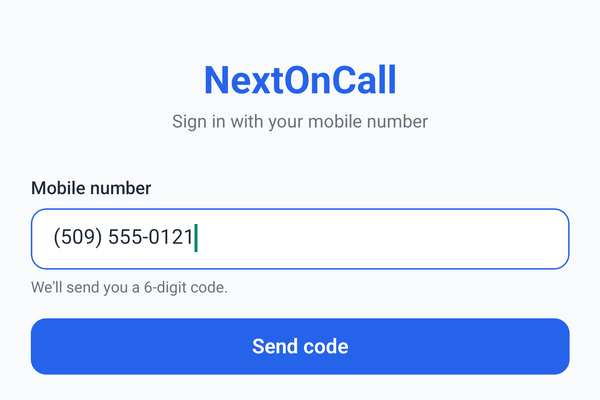
- Open the app. Under Mobile number, enter the cell number your practice added you with, then tap Send code.
- You'll get a text: "NextOnCall: Your login code is …". Type the 6 digits; the app signs in as soon as the sixth is in. On iPhone, the code usually appears above the keyboard to tap.
- If no text arrives, wait for Resend code (30 seconds). Codes last 10 minutes.
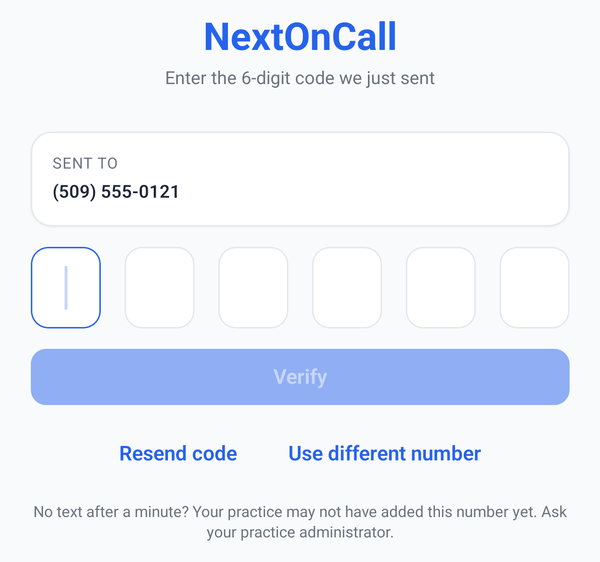
No text after a minute? Your practice may not have added this number yet, or added it with a typo. Ask your practice administrator to check your number on their On-Call Team page.
On more than one practice's team? After the code, the app asks "Your number is on more than one team. Which one is this for?" Tap the practice you're on call for. The app is signed in to one practice at a time: calls from the other practice ring your cell phone directly, and its shift reminders don't reach the app. To switch, log out and sign in again.
4. Set up your phone so calls ring
This is the part that matters most. It takes two minutes, once.
Everyone
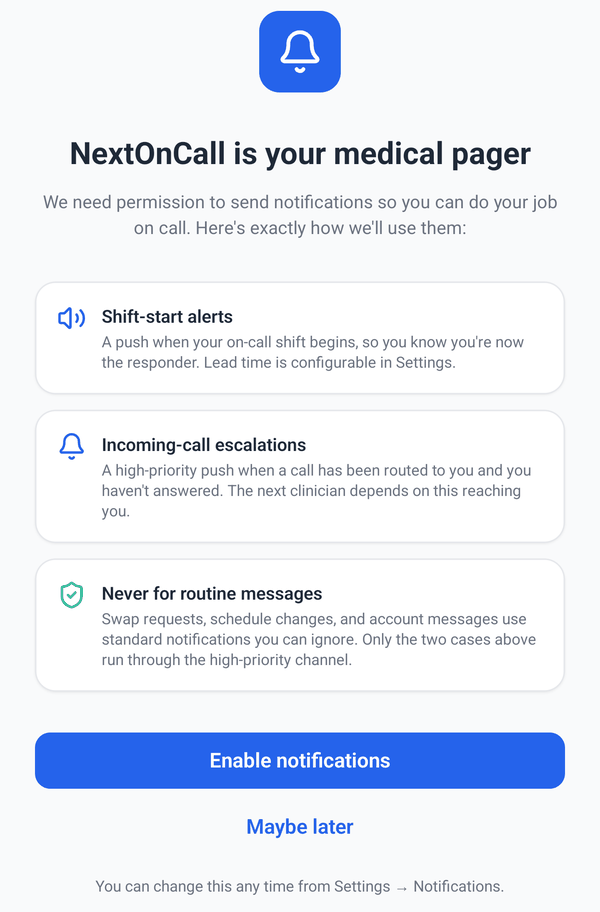
- When the app asks about notifications ("NextOnCall is your medical pager"), tap Enable notifications. Without them you get no calls or shift reminders in the app.
- Allow the microphone when asked. Calls need it.
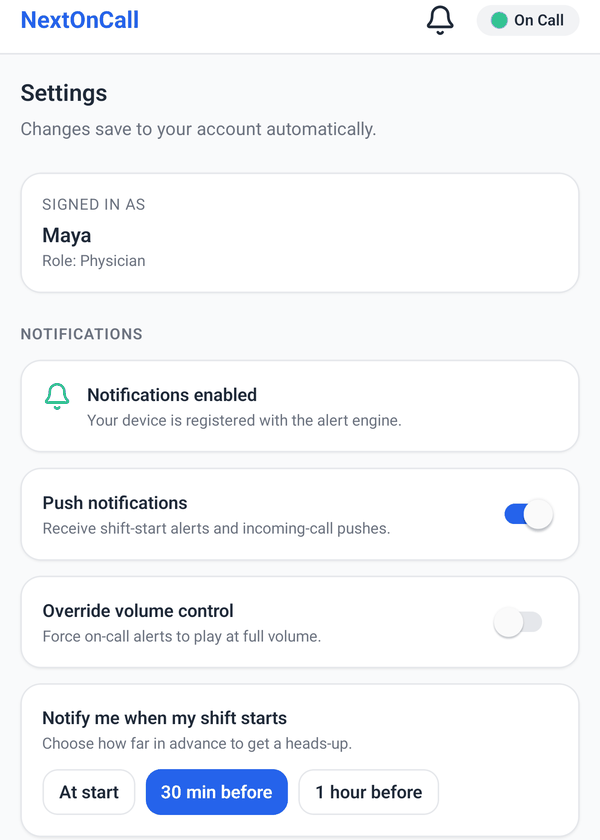
- Check Settings → Notifications in the app: it should say "Notifications enabled". If it says "Notifications blocked", tap Open device settings and turn them on.
iPhone
- Keep the ringer on while you're on call. With the side switch on silent, or a Focus mode on, calls and alerts arrive without sound.
- If you use Focus modes (Do Not Disturb, Sleep, Work), add NextOnCall to the allowed apps: iPhone Settings → Focus → the Focus → Apps.
- Calls ring on the iPhone's own call screen, like any phone call.
Android
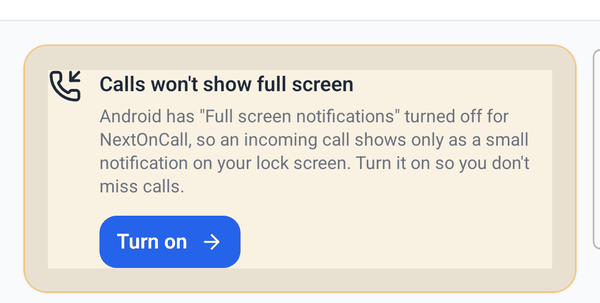
- Android 14 and newer: turn on Full screen notifications for NextOnCall. If it's off, the app's Home screen shows "Calls won't show full screen"; tap Turn on and switch it on. (Or: Settings → Apps → ⋮ → Special access → Full screen notifications.) With it off, a call shows only as a small notification on the lock screen.
- Never use Force stop on NextOnCall (Settings → Apps → NextOnCall). A force-stopped app gets no calls or alerts until you open it again. Swiping the app away from your recent apps is fine.
- Samsung: in Settings → Battery → Background usage limits, make sure NextOnCall is not on the "sleeping apps" or "deep sleeping apps" list.
- The app rings with your phone's own ringtone and follows the ringer: Silent means silent, Vibrate means vibrate. Keep the ringer on while you're on call.
The best check is a test call: ask your practice to call its NextOnCall number during one of your shifts, once with the app open and once with your phone locked.
5. Shift reminders
- Before each shift you get a reminder, for example "On call soon: Hi Sam, your on-call shift starts in 30 minutes."
- Choose when in Settings → Notify me when my shift starts: At start, 30 min before or 1 hour before.
- Leave Push notifications switched on in Settings.
- If the reminder adds "You're signed out of the NextOnCall app. Tap to sign in.", tap it and sign in. Until you do, calls ring your cell phone, not the app.
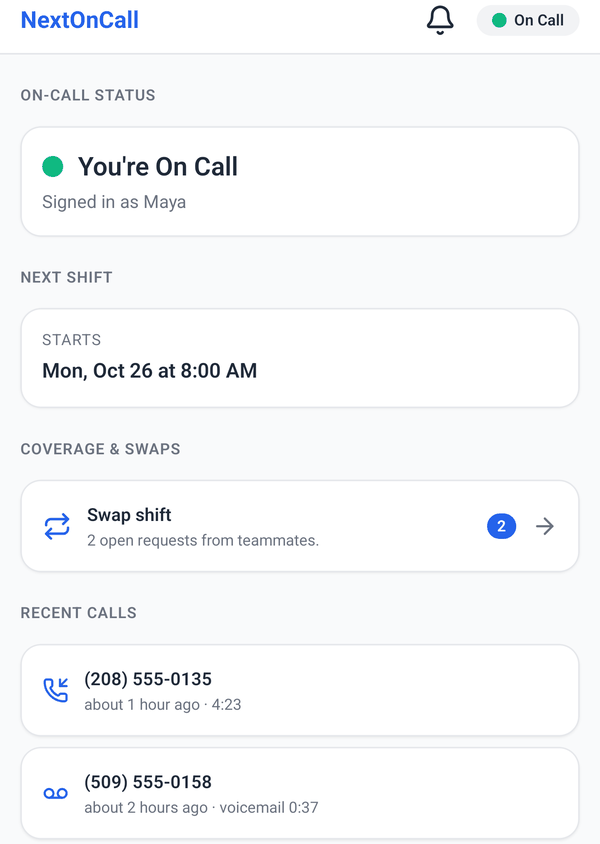
- The Home screen shows whether you're On Call right now and when your next shift starts.
6. Answering a call
- The call rings like a phone call: on iPhone on the normal call screen, on Android on a full-screen call screen. Answer it the usual way.
- Didn't get to it in time, or declined it? Your cell phone rings next, showing the practice's number, so you get a second chance.
- Some practices turn on press 1. Then, when you answer on your cell, a voice says "NextOnCall: on-call call for [practice]. Press 1 to accept." Press any key within a few seconds to be connected. This keeps your personal voicemail from taking the call.
- On the app's call screen you'll see the caller's number and the practice's caller notes about them. On iPhone, open the app after answering to see the notes; a "Call connected" notification takes you there.
Buttons on the call screen
| Mute / Unmute | Turns your microphone off and on. |
|---|---|
| Speaker / Earpiece | Switches between speakerphone and the earpiece. |
| Escalate to … | Hands the call to the next person up. It only appears when someone is on the next tier right now. The caller hears your practice's hand-off message while that person's phone rings, and you're disconnected. If they don't pick up, you get an "Escalation not answered" notification saying where the call went. |
| End call | Hangs up. |
- Personal call while on a NextOnCall call: you can put the NextOnCall call on hold and answer (Hold & Accept). The NextOnCall screen then shows "on hold"; tap Resume call to go back.
- Moved to another screen during a call? Tap the green bar at the top, "Call in progress … Tap to return to the call".
7. Calling a patient back
- Open the Call tab.
- Tap a call under Recent calls and confirm Call, or type a number on the dial pad and tap the green button.
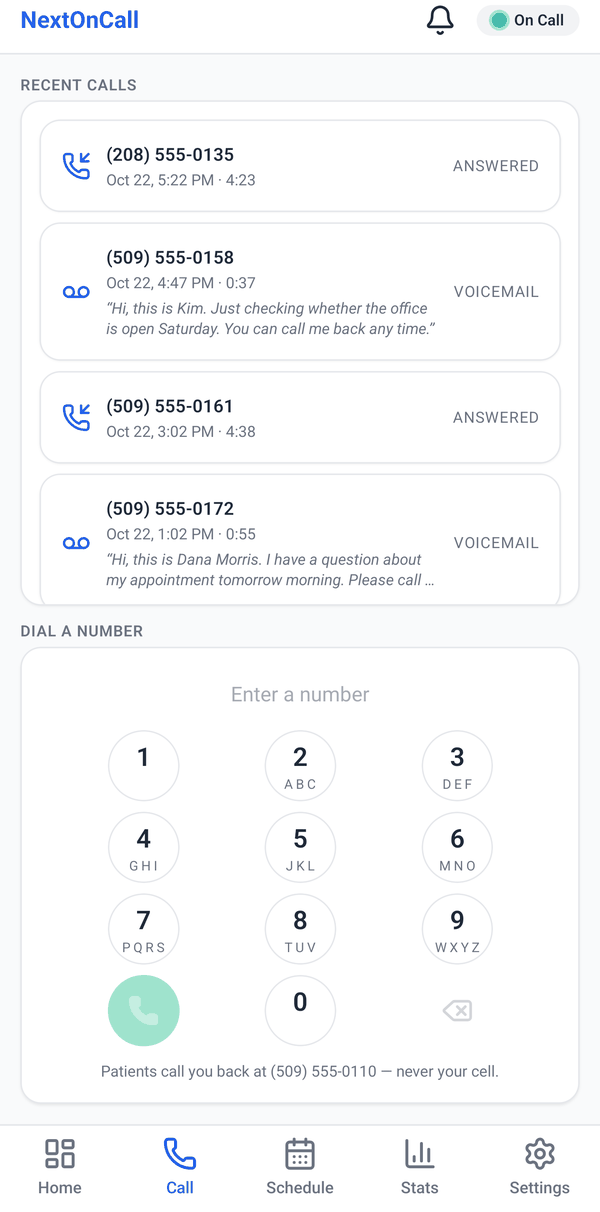
The patient sees the practice's number, never your cell, and when they call back they reach the practice line.
If the app can't connect the call, it offers Ring my phone: your cell rings first, and when you answer, NextOnCall connects you to the patient, still showing the practice's number.
8. Voicemail
- When a caller leaves a voicemail, the person on call gets a "New voicemail" notification with the caller's number and the length.
- Tap it, or open the Call tab: voicemails are marked Voicemail and show the transcript when it's ready.
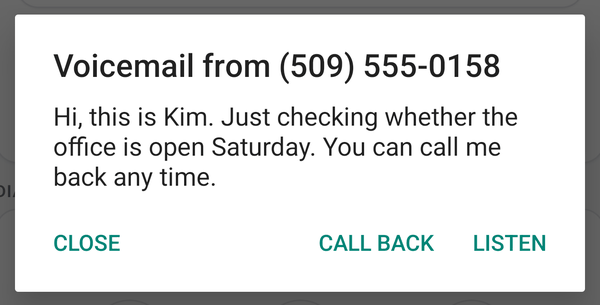
- Tap the voicemail, then Listen to play it, or Call back.
9. Caller notes
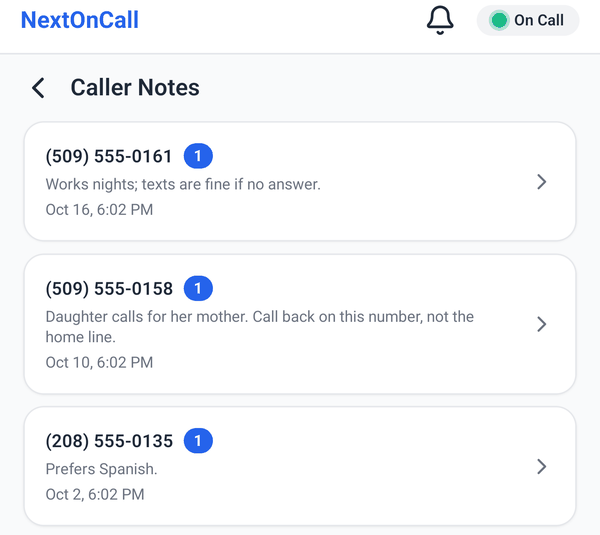
Caller notes are shared with everyone in your practice. They're for practical details that help the next person who takes a call from that number, for example "Daughter calls for her mother; call back on this number" or "Prefers Spanish".
- Add one from the call screen during a call, or from Home → Caller notes.
- Each note shows who wrote it and when.
Keep medical details out of notes: no diagnoses, medications or test results. NextOnCall isn't built to hold patient health information. Clinical notes belong in your practice's medical record.
10. Your schedule, coverage and swaps
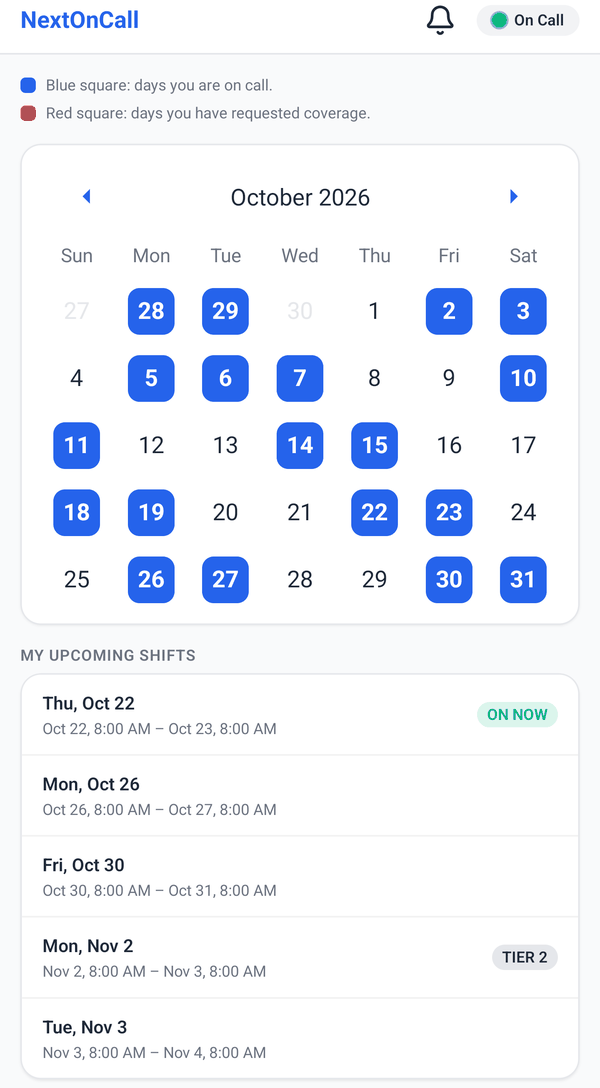
The Schedule tab shows your days on call in blue and your upcoming shifts. Backup shifts show TIER 2 or TIER 3. The practice's office staff build the schedule on the website.
Give a shift away (coverage)
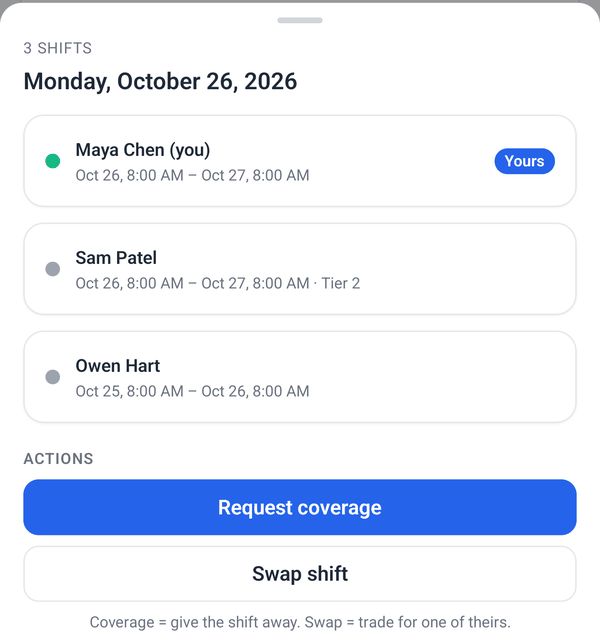
- On the Schedule tab, tap the day, then Request coverage. Add a note if you like, then tap Send coverage.
- Your team gets a "Coverage needed" notification. The first person to tap Accept → Take shift gets it, and you get "Coverage accepted".
- Until someone takes it, the shift is still yours. You can cancel the request from the same day.
Trade a shift (swap)
- Tap the day, then Swap shift, add a note if you like, and tap Send swap.
- A teammate taps Accept on your request and picks one of their shifts to offer.
- You get "Swap proposal received". On Home → Swap shift, tap Confirm to trade, or Reject to reopen your request for others.
To answer someone else's request, open Home → Swap shift (or tap the bell at the top). Requests appear under Open requests.
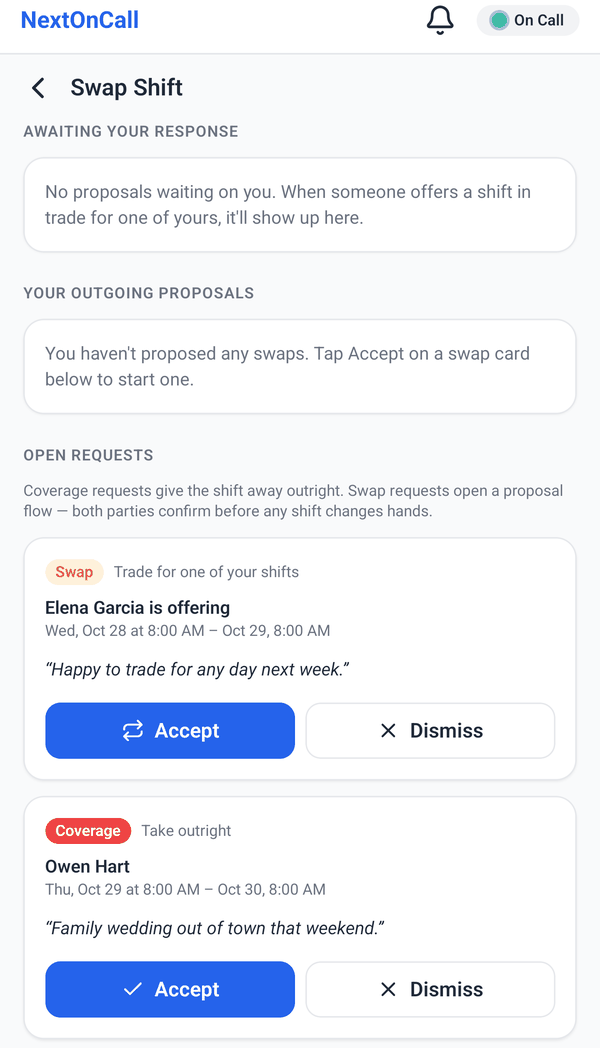
The change happens at once, with no approval step, and your practice can choose to get an email about each one. If you take over a shift, its calls ring your phone from then on.
11. Stats
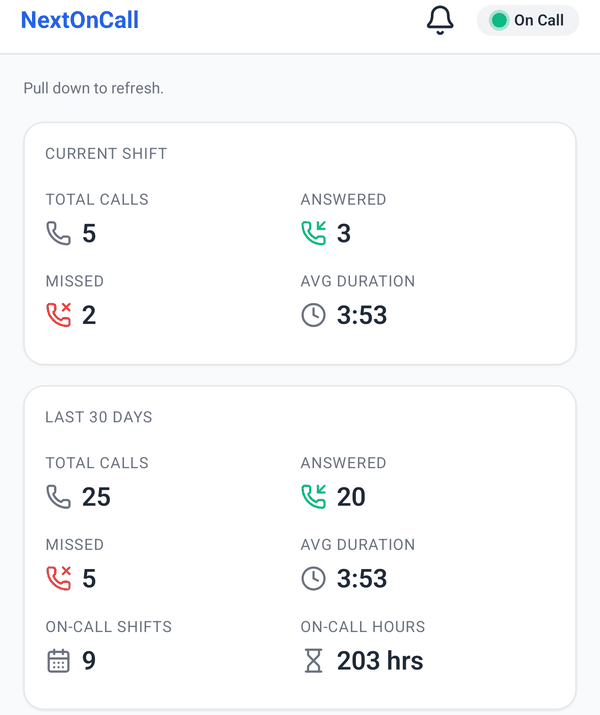
The Stats tab counts your calls (answered, missed, average length) for your current shift, the last 30 days, the last 12 months and all time, plus your shifts and hours on call.
12. Logging out and changing phones
- Settings → Log out signs you out on every phone. While you're logged out, your on-call calls ring your cell phone, not the app.
- One phone at a time: signing in on a new phone signs the old one out. The old phone shows "You were signed out".
- New phone? Install the app on it and sign in. That's all.
13. When something isn't right
| "You were signed out" | Sign in again with your number and a new code. Until you do, calls ring your cell phone. |
|---|---|
| Calls ring my cell, not the app | Check you're signed in, that Settings shows "Notifications enabled", and the phone setup above (Android: Full screen notifications, no Force stop, not a sleeping app; iPhone: Focus). |
| No ring sound | Turn the ringer on. iPhone: the side switch and Focus modes silence calls and alerts. |
| "Updating the app" | The app is getting a small update. It restarts by itself in a few seconds, and never during a call. |
| "Update NextOnCall" | Your version is too old. Tap Update now, or update NextOnCall in the App Store or Google Play. Until you do, calls ring your cell phone. |
| "Something went wrong" | Tap Reload app. The problem is reported to us automatically, and your calls still ring your cell phone in the meantime. |
| A shift is wrong | Ask your practice's office staff; they manage the schedule on the website. |
Still stuck? Email contact@nextoncall.com with your practice's name, your phone model and what happened. Never include patient details.