1. How calls reach your team
Your practice gets its own NextOnCall phone number. Your office line forwards after-hours calls to it, or patients dial it directly. When a call comes in:
- NextOnCall rings the tier 1 provider on call in the NextOnCall app, for up to about 20 seconds. If the app can't ring at all (phone off, app removed), it moves on after 10 seconds.
- Then it rings their cell phone for about 25 seconds. It shows your practice number as the caller, never the patient's.
- Then, depending on your Call Handling settings: the backup tiers on call, then your fallback number.
- If nobody answers, the caller leaves a voicemail (and the provider on call gets a notification), or hears your message and the call ends.
Providers call patients back from the app, and the patient sees your practice number, never the provider's cell.
2. Who can do what
Everyone in your practice has one of three kinds of access, set on the On-Call Team page:
| Admin | Everything: the team, the schedule, all settings, billing, and who has website access. The person who signs up is the first admin. A practice always keeps at least one admin. |
|---|---|
| Web user | The schedule, Call Handling and Company Profile, and adding or editing app-only team members. No billing, and can't change who has website access. |
| App only | No website login. This is usual for providers: they sign in to the app with their cell number. |
Separately, "Takes call" marks who can be put on the schedule. Only people who take call count toward your plan's on-call slots, so office staff never use one.
3. Sign up
- Go to api.nextoncall.com/register.
- Fill in Company Information, your Contact Details and a password. If your email already has an account, a line under it says so; use its Log in instead link.
- Under Choose your Plan, pick Standard (up to 5 on-call staff), Advanced (up to 10) or Enterprise (unlimited), monthly or annual (annual costs 10 months' worth).
- Tap Proceed to Payment and enter a card (cards only).
- After "Payment Successful", the site takes you to choose your number.
You become the practice's first admin, and you're marked Takes call. If you don't take call yourself, untick it on the On-Call Team page so you don't use an on-call slot.
4. Choose your practice number
- Under Search available numbers, pick a state, an area code, or both, and tap Search Numbers. A local area code is usually best.
- Click a number, check it, and tap Confirm & Activate.
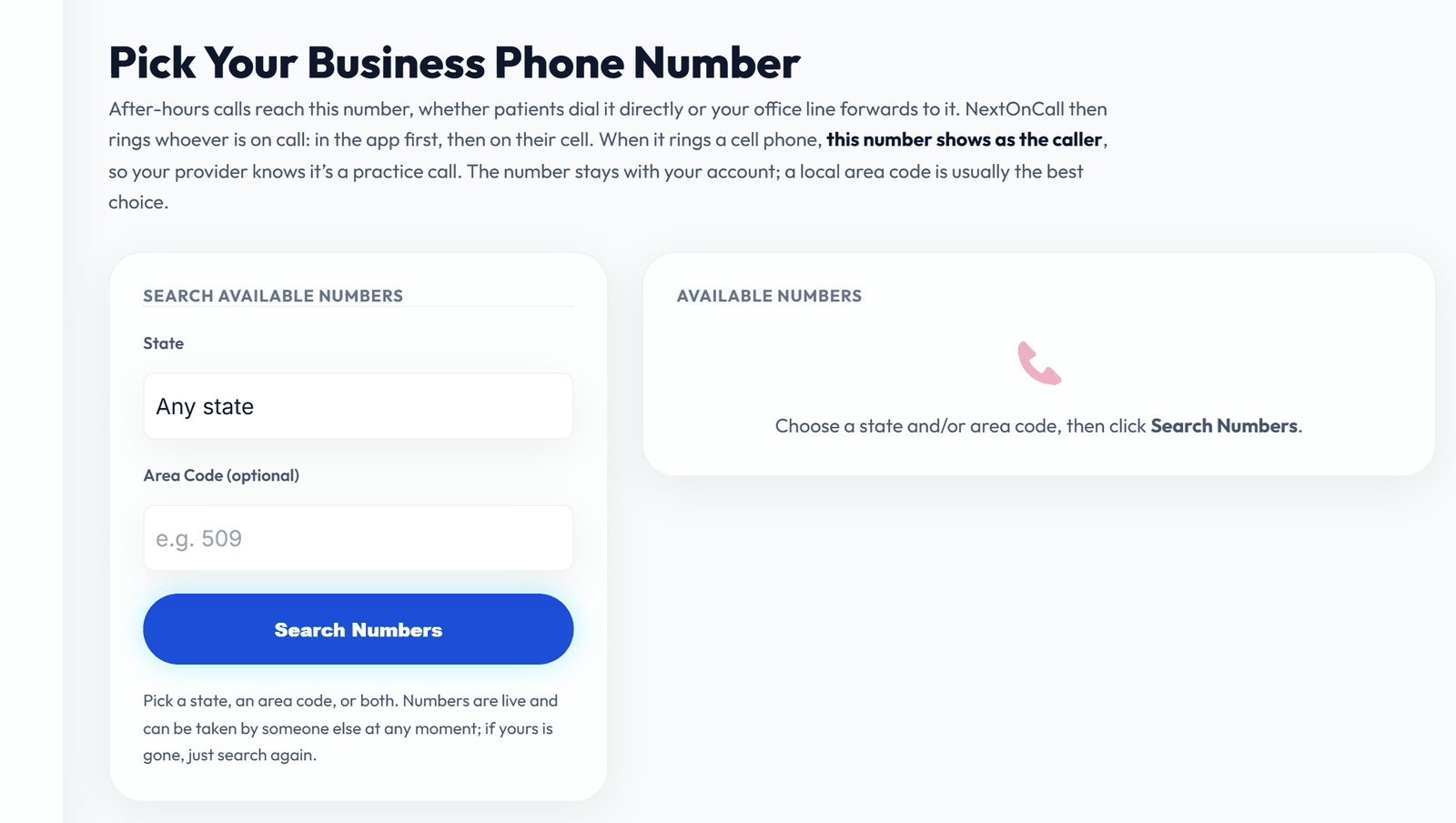
Check before you confirm: you can't change the number yourself later. Write it down too: your phone vendor needs it for forwarding.
Until a number is chosen, admins see "Your practice line isn't set up yet" on the Dashboard and Settings, with a Choose your number button.
5. Add your team
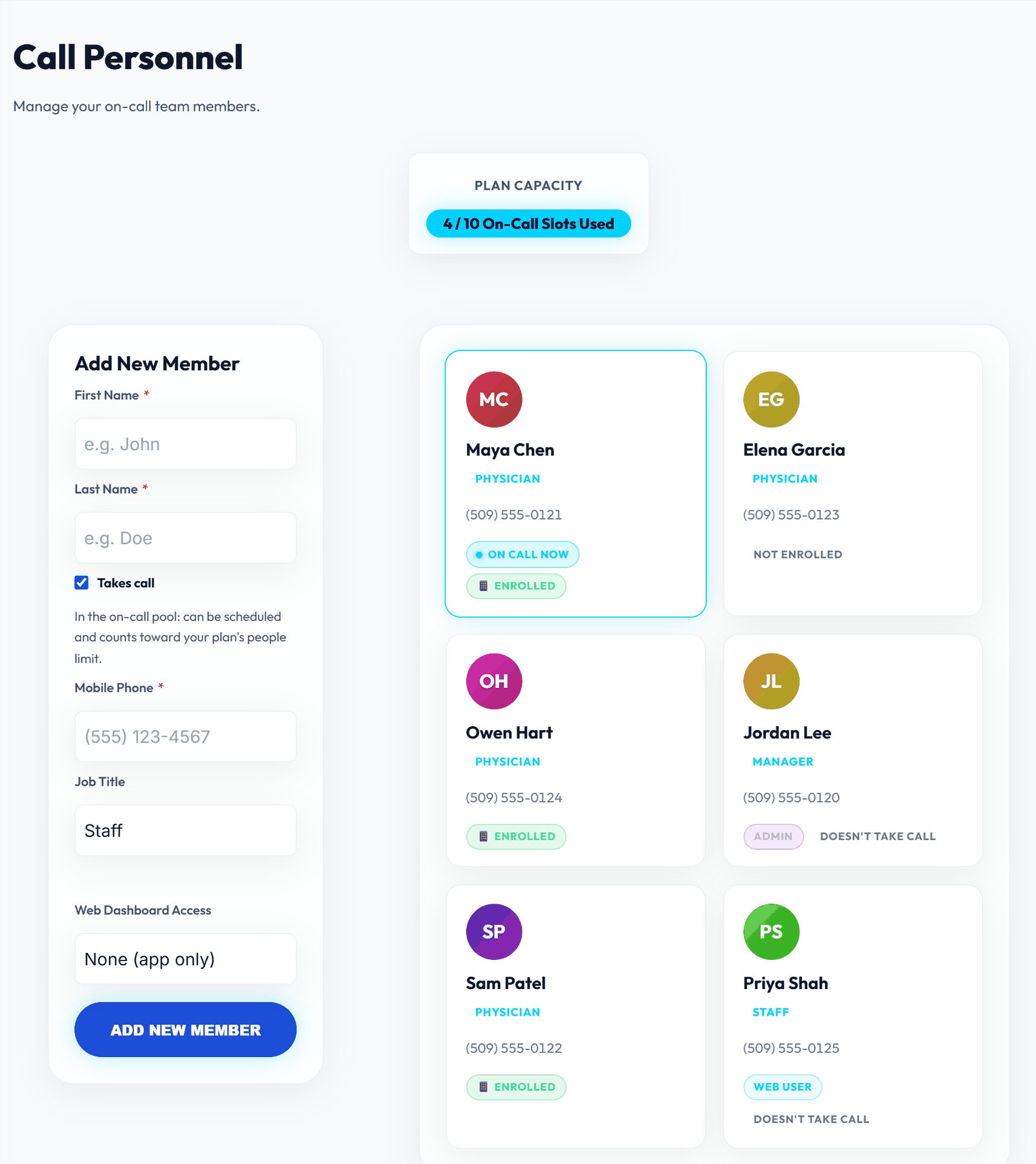
Open On-Call Team. For each person, fill in Add New Member:
- First Name, Last Name and Job Title.
- Takes call: ticked for everyone who goes on the schedule. Leave it unticked for office staff.
- Mobile Phone: required for anyone who takes call. It must be the cell number they'll sign in to the app with, and it's the cell NextOnCall rings when the app doesn't answer.
- Web Dashboard Access (admins only): None (app only), Web user or Admin. Web access needs a Login Email.
What happens next
- Everyone who takes call gets a welcome text with the app's download links and a link to the app guide.
- Everyone given web access gets an email invite to set a password. The link lasts 7 days; Resend invite sends a new one.
- Each card shows 📱 ENROLLED once that person has the app set up for notifications, or NOT ENROLLED until then.
- Every admin gets an email when someone becomes an admin or loses web access.
Good to know
- The badge at the top shows "On-Call Slots Used". When it's full, you can still add people who don't take call.
- You can't untick Takes call for someone with current or upcoming shifts: move or delete their shifts on the Schedule page first.
- Delete removes the person and their future shifts and signs them out of the app. Past calls keep their name.
6. Build the schedule
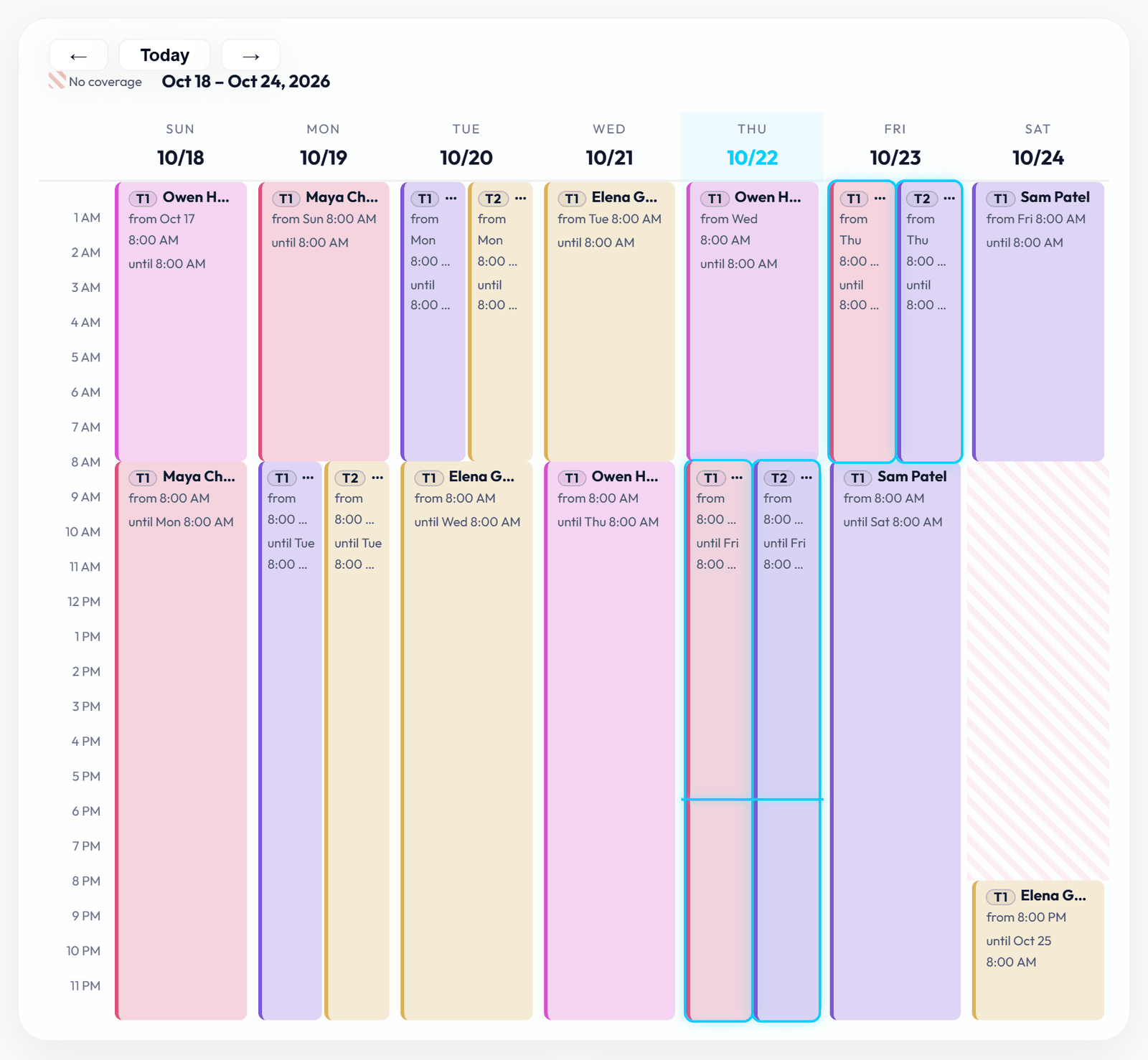
Open Schedule. The week calendar shows who's on call. Stretches with nobody on call are striped red.
Add a shift
- Under Add Shift, choose the On-Call Person (only people who take call are listed).
- Choose the Tier: Tier 1 rings first; tiers 2 and 3 are backups (see Call Handling).
- Set Shift Start and Shift End, then Save Shift.
- Click a shift on the calendar to Edit or Delete it. The All Shifts list below the calendar has every shift, with filters, and flags gaps in coverage.
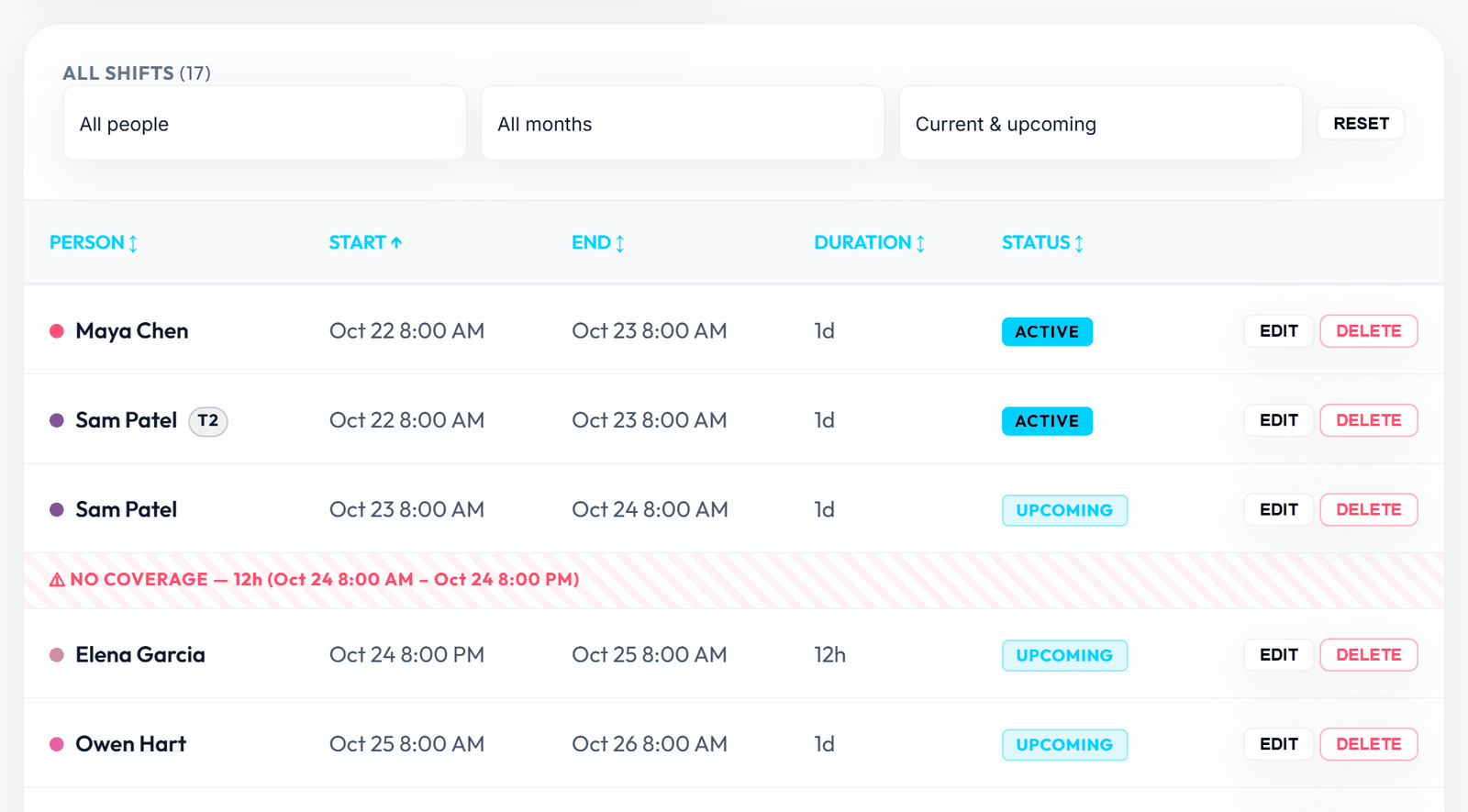
- If two people overlap on the same tier, you're asked to confirm. Calls ring whoever's shift started most recently.
- The calendar shows times in your computer's time zone.
On the Enterprise plan, we'll set up your team and rotation for you (concierge onboarding). Email them to contact@nextoncall.com in any format: a spreadsheet, a PDF or a photo of a paper schedule.
Last-minute changes
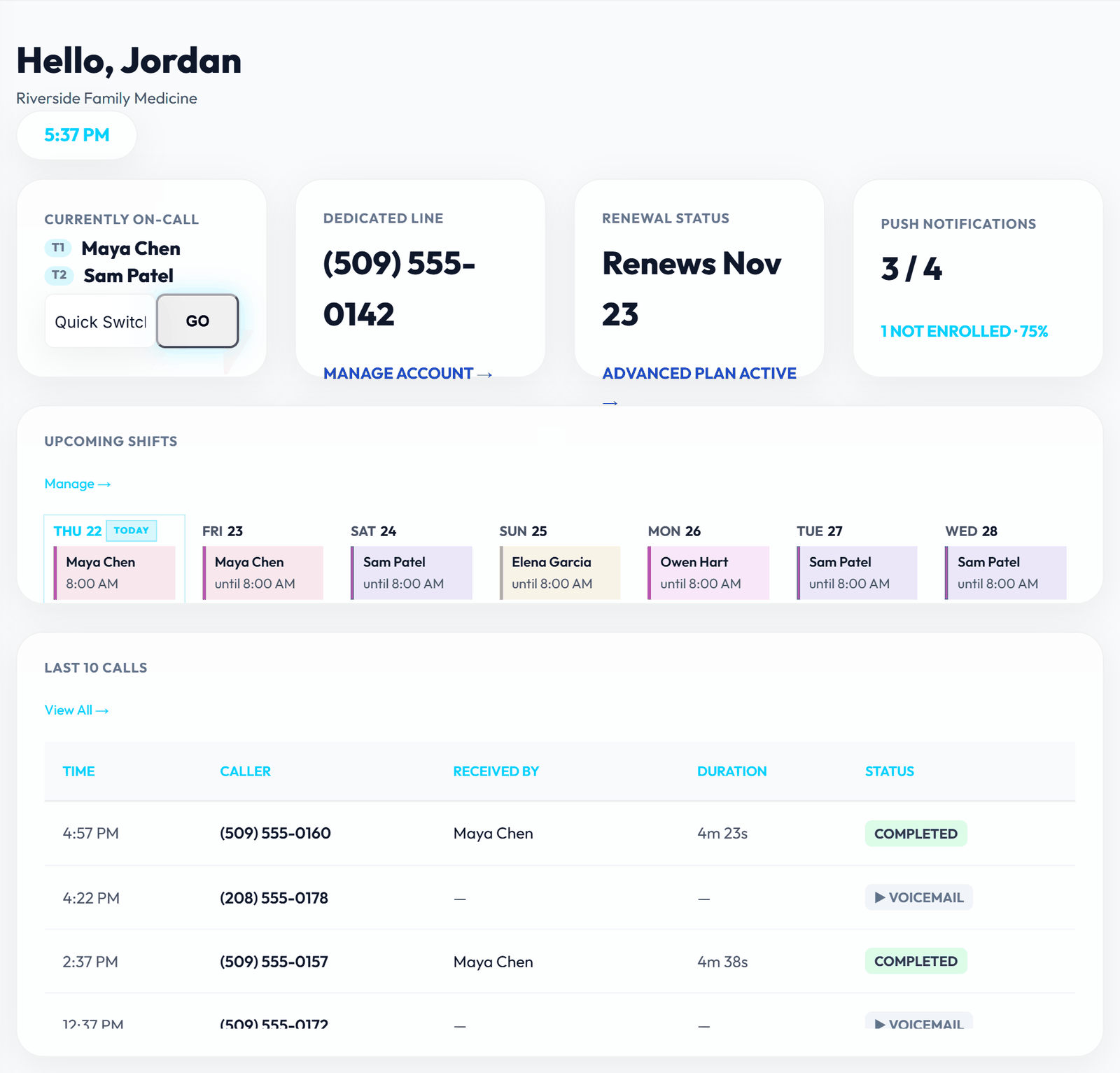
On the Dashboard, Quick Switch… → GO puts someone on call (tier 1) from right now, with no end time. They stay on call until the next scheduled shift starts. Tidy up the schedule afterwards.
Coverage and swaps from the app
Providers can give a shift away or trade shifts in the app. The shift changes hands as soon as they agree, with no approval step, and the Schedule page shows it within a minute. Open requests are under Pending Requests, and finished ones under Request History.
To get an email each time, an admin lists up to five addresses in Settings → Schedule Change Emails. They can go to anyone, for example the front desk. Changes made on the website aren't emailed.
7. Set how calls are handled
Settings → Call Handling. Each setting:
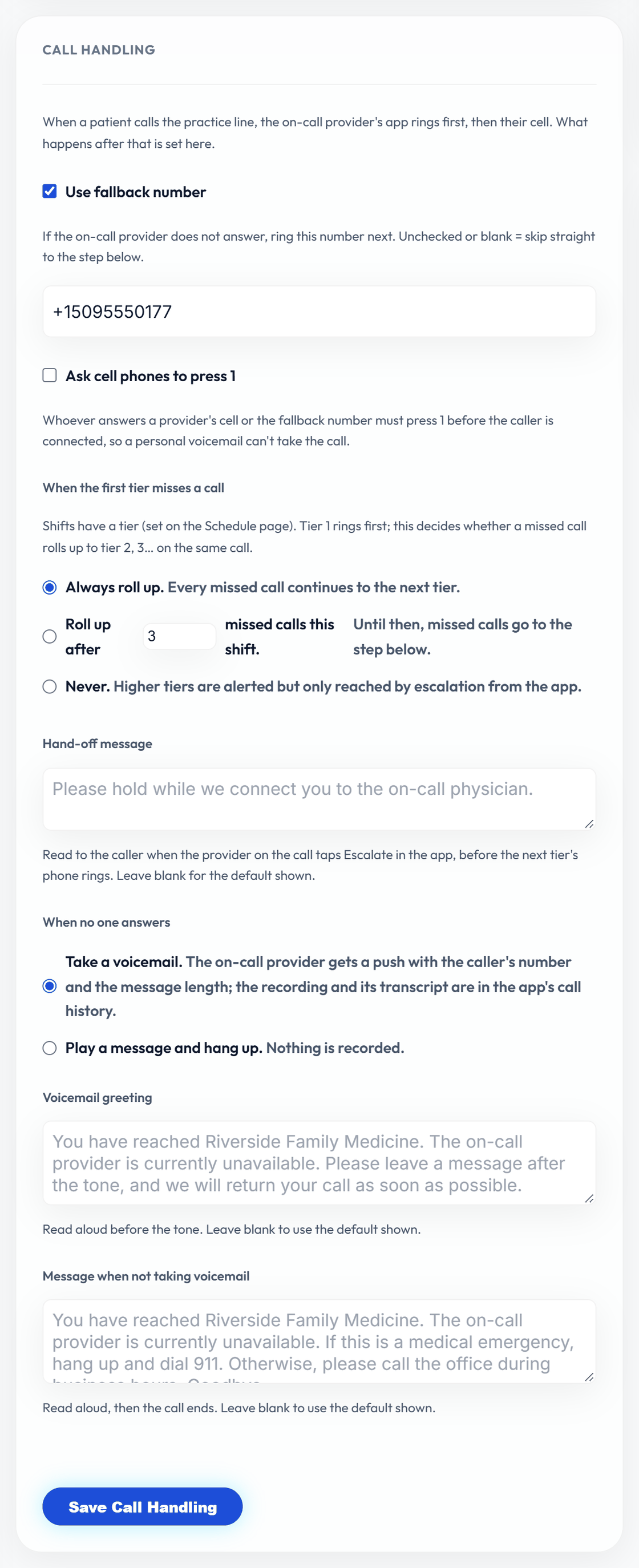
| Use fallback number | A number to ring if the on-call provider doesn't answer, for example an answering service or a manager's cell. Leave it off to go straight to voicemail. |
|---|---|
| Ask cell phones to press 1 | Whoever answers a cell or the fallback number hears "NextOnCall: on-call call for [practice]. Press 1 to accept." and must press a key. Turn it on if your providers' personal voicemail keeps picking up their calls. Off by default. |
| When the first tier misses a call | Always roll up to tier 2, then 3 (the default); Roll up after a number of missed calls this shift; or Never (higher tiers are only reached when a provider taps Escalate in the app). |
| Hand-off message | What the caller hears when a provider taps Escalate, while the next tier's phone rings. |
| When no one answers | Take a voicemail (up to 2 minutes, transcribed; the provider on call gets a notification), or Play a message and hang up (nothing recorded). You can write your own greeting or message; the default is shown when the box is empty. The default message tells callers to dial 911 in an emergency. |
Also check Company Profile: Company Phone is your office line, and Time Zone sets the times shown in NextOnCall's emails.
8. Forward your office line
You keep your office number. Patients call it as always, and your phone system forwards after-hours calls to your NextOnCall number.
- Contact your phone vendor (or whoever manages your office phone system). This is often the step that takes longest, so start early.
- Ask them to forward after-hours calls to your NextOnCall number, on the hours and days you want covered.
- Agree a date, and have someone on call that first evening.
- When it's live, call the office line after hours and check that the provider on call is rung.
9. Test before you go live
- Every provider has installed the app, signed in, and shows 📱 ENROLLED on the On-Call Team page.
- Each provider takes one test call during a shift: once answered in the app, and once left to ring through to their cell.
- Call with nobody answering, and check the voicemail (or message) and the fallback number, if you use one.
- The schedule has no red gaps for the first week.
- Call the office line after hours once forwarding is on.
10. Day to day: Dashboard and Analytics
- Dashboard: who is Currently On-Call, your Dedicated Line, the renewal status, how many on-call staff have the app set up (Push Notifications), the next 7 days of shifts, and the last 10 calls.
- Voicemails in Last 10 Calls show ▶ VOICEMAIL: click to listen, or hover for the transcript. The link works for an hour; reload the page for a fresh one.
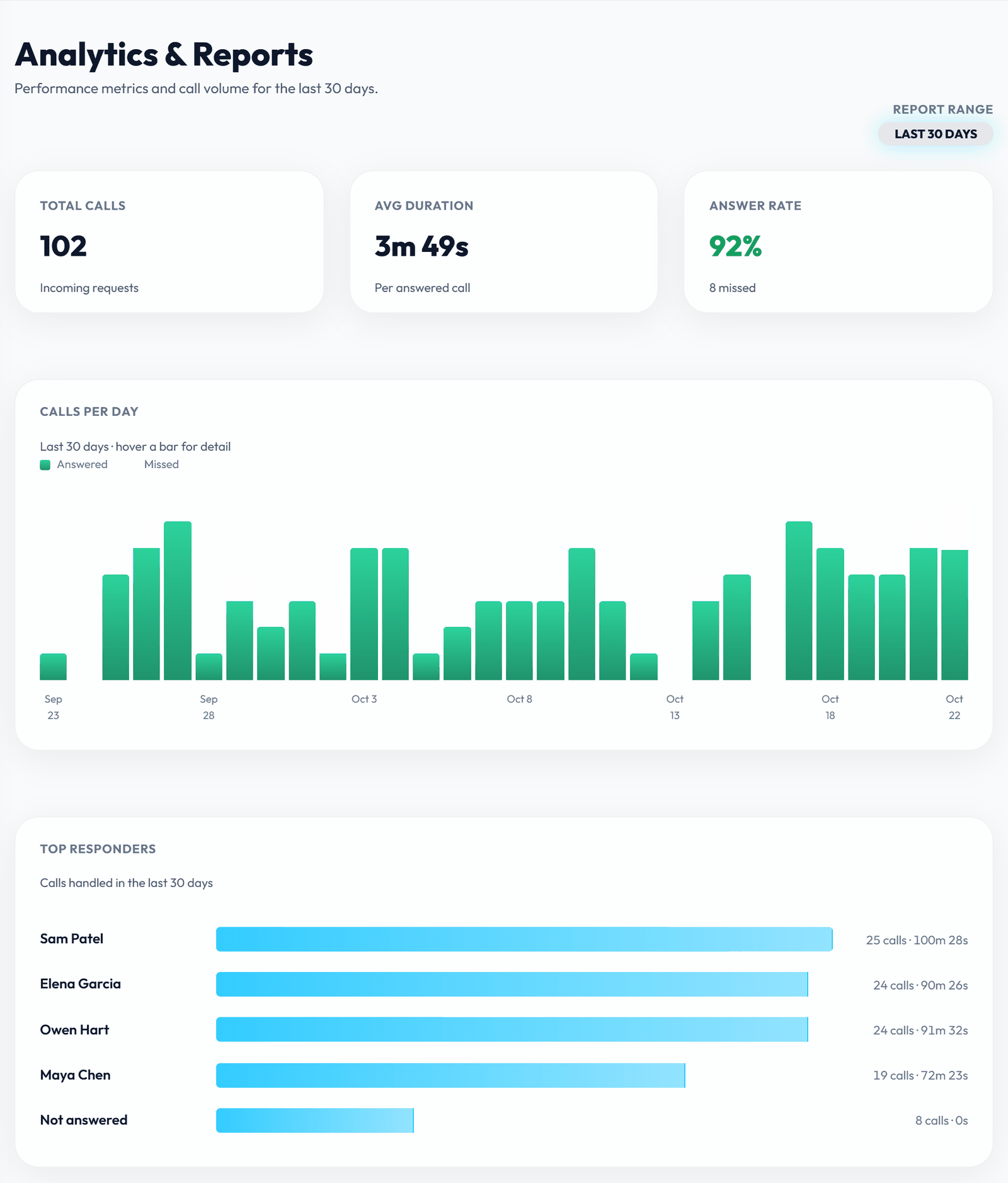
- Analytics: the last 30 days, with total calls, answer rate, average length, calls per day, top responders and the last 50 calls.
11. Billing (admins)
Settings shows your plan, the card on file and the renewal date. From there an admin can:
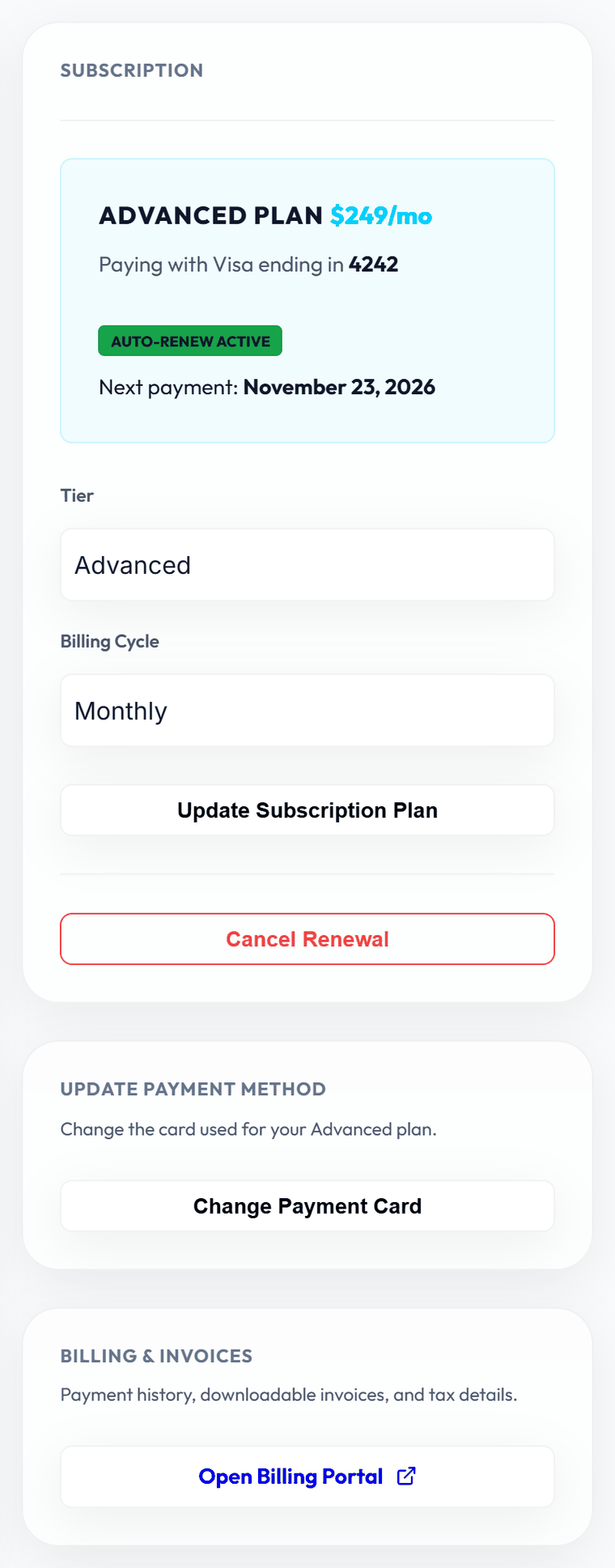
- change the plan or billing cycle (Update Subscription Plan; the difference is prorated);
- change the card (Change Payment Card);
- see invoices and billing details (Open Billing Portal);
- turn renewal off or back on (Cancel Renewal / Reactivate Subscription). Every admin gets an email when renewal changes.
If a payment fails, Settings shows "Payment past due". Update the card to keep service running.
12. Your login
- Sign in at api.nextoncall.com/login with your email and password.
- Forgot it? Forgot your password? emails a reset link that lasts 1 hour.
- Change your password under Settings → Security, and your name and email under Company Profile.
- Display Theme: light (Solar) or dark (Eclipse).
13. Getting help
On the website, open FAQ → Open Support Ticket, or email contact@nextoncall.com. Tell us your practice and what happened. Never include patient details.
NextOnCall is not an emergency service. Your callers can always dial 911.